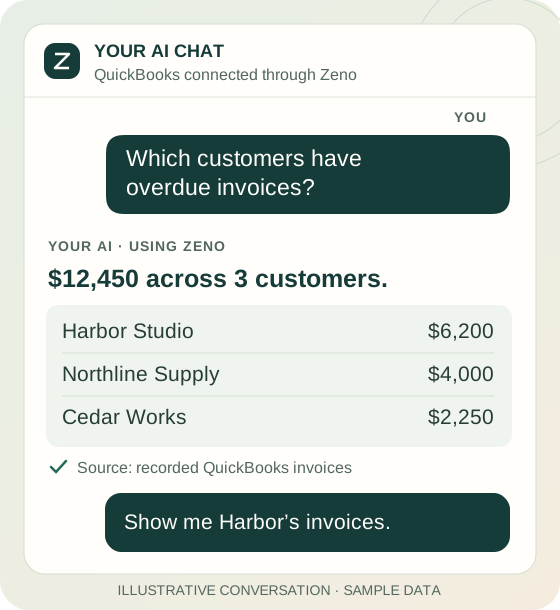
Zeno connects Claude or ChatGPT to QuickBooks. Ask what is going on in the business and get the answer with the transactions behind it. Ask it to prepare bills, match receipts or code card charges. Check the proposed entries and approve them before they post.
Ask in your own words. Follow the answer down to the invoice.
Pick by whose books you keep
Find help for your part of the bookkeeping.
YOU RUN THE BUSINESS
Get the answer without waiting for the month-end email.
Ask who owes you money, which bills are due this week, or why expenses jumped. See the transactions behind the number. Leave the question that needs judgment for your bookkeeper.
Code the card feed in one instruction, match the receipt folder to the charges, enter the bills in the inbox. Save the coding you confirm as a rule for next month. The owner asks their own questions instead of asking you.
More clients per bookkeeper. The final say stays with the firm.
Each client has its own rules, documents and history. Your staff ask the AI to prepare entries and review the proposed work together. What you teach it about a client is there for the next month and the next person.
Books on QuickBooks Desktop? Get help with entries and financial questions using the company file on your Windows PC. Zeno for QuickBooks Desktop →
Try a bookkeeping example
Give Zeno the assignment. Keep the final say.
Ask for the work, resolve a missing detail and review the proposed entries. This example shows each step before anything posts.
Fictional records · nothing uploads or posts
ZRidgeline PropertiesOctober close
Your AI is connected through Zeno
Your AIAsk for help with the books
Ridgeline Properties
This example uses fictional records. You can try the steps without connecting an AI account or changing any QuickBooks company.
Use the documents behind each entryYour assistant can use the bills, receipts and other files you share with it to prepare entries you can check.
Code bank transactions togetherConnect your bank or import a statement. Your assistant can match and code the transactions for review. See how bank feeds work →
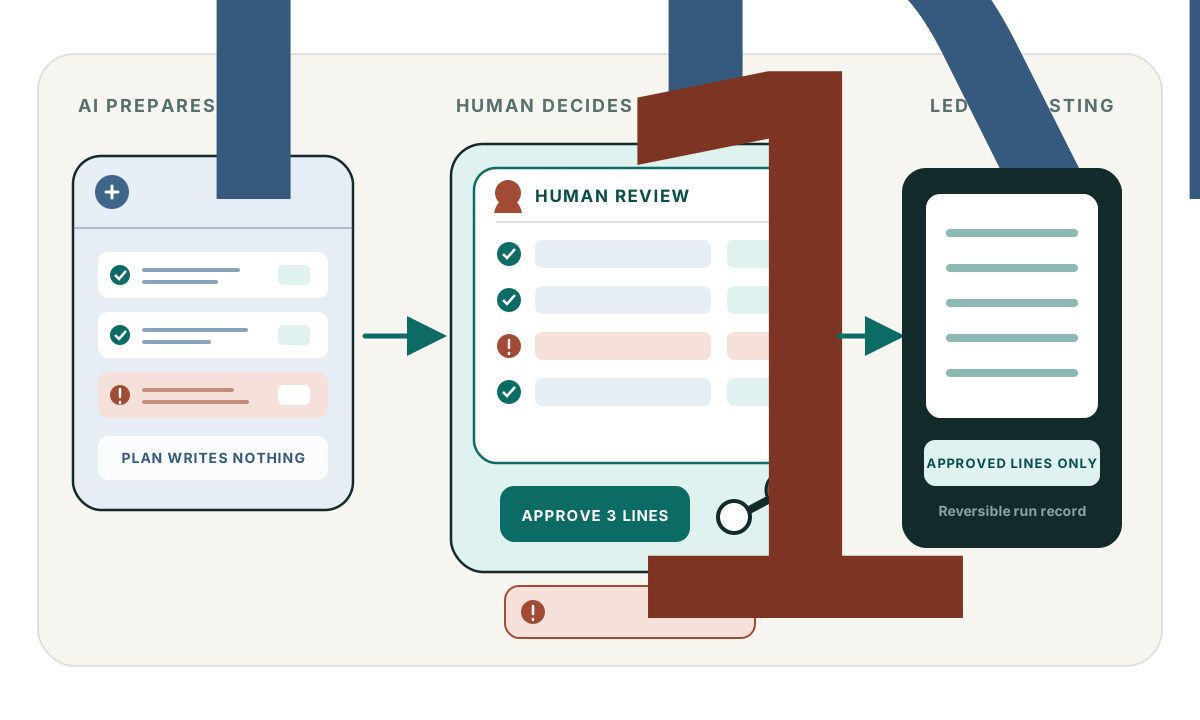
A person approves the planThe AI checks names, accounts and duplicates against live QuickBooks and brings one plan to whoever signs off.
What you can ask for
Get through the routine work with fewer manual steps.
Ask your assistant to prepare bills, match receipts or code a month of card charges. It uses your QuickBooks records and saved instructions, then brings the proposed entries back for your review.
01
Your paperworkBank activity · receipts · email · files
02
Gather the workBank transactions · bills · receipts
03
Use your instructionsCoding rules · notes · checklists
04
Prepare the entriesCode · match · prepare · explain
05
Review and approveCheck the coding · leave out a line
06
QuickBooksPosted · receipt attached · on record
BILLS AND SUPPORTING DOCUMENTS
“Use the lease in Drive, the vendor’s email, and this calendar to prepare the entries for review.”
Use the documents you already work with.
If you have given your assistant access to your files, email or calendar, it can check those sources while preparing your QuickBooks entries. For example, it can use the rent amount and dates in a lease.
RECEIPT FOLDER TO QUICKBOOKS
“Match the receipts in this folder to their card charges, flag the uncertain ones, and attach the rest to the correct QuickBooks transactions.”
The receipt ends up on the transaction.
Zeno matches receipts in the inbox to card charges, shows you the pairs it is unsure of, and attaches each approved receipt to the QuickBooks transaction it posts.
A MONTH OF CARD CHARGES
“Code every Home Depot charge to Repairs & maintenance, class Willow. Exclude the owner purchase and show me what is left.”
Code similar charges together.
Your assistant can code similar charges together, match transactions already in the books and identify transfers. You review the proposed entries before they post.
RECURRING EXPENSES
“Every LUCCHINI FUEL charge under $500 goes to Gas & Oil, class Overhead Costs. Test that rule, then make it automatic.”
Save the coding you want to use again.
Zeno shows you exactly which lines a rule would catch before you confirm it. From then on, new bank activity is coded by the rule as it arrives.
BILLS AND CUSTOMER INVOICES
“Enter this folder of vendor bills, prepare monthly invoices from the customer schedule, and hold anything whose terms disagree.”
Bills, invoices and cleanup work the same way.
Prepare several bills or invoices together using the names and accounts in QuickBooks. Check the entries and resolve questions before approving them.
ANSWERS AND FOLLOW-THROUGH
“Which clients spent more on repairs this quarter, and which close tasks are still waiting on us?”
Find out which clients need attention.
Ask about overdue invoices, unusual expenses or unfinished work across your clients. Check the records behind the answer and decide what to tackle next.
Start with a task you know well. Compare the proposed entries with how you would do the work, then approve what is ready.
Built for books you sign your name under
The AI does the work. A person decides what posts.
You can see the accounts, amounts and supporting records before approving the entries. Zeno requires your approval before a prepared plan can post to QuickBooks.
The AI sees only what it is allowed toYour assistant can access only the companies and work your role permits, along with documents you have shared.
Preparing and posting are two different actsThe AI prepares the plan. Only a person can approve it, and only then does Zeno post it.
Approval covers exactly what was reviewedIf the books change under a plan before it posts, the plan stops and comes back for another look.
The record outlives the chatFind the source document, the approval and the QuickBooks result later. Supported entries can also be reversed, subject to the transaction and the current books.
Three editions, one product
For a client practice, your own business, or the Desktop file on your PC.
ZENO FOR FIRMS · FROM $149/MONTH
Every client’s month, prepared by AI and approved by your firm.
Three client books to start, on QuickBooks Online or Desktop, and everyone at the firm on them. Each client keeps its own rules and history. One queue shows what needs a person across the practice.
Have your assistant prepare bills, code charges and answer questions about the books on your Windows PC. Review entries before posting. Buy a licence once, with no Zeno account required.