
Bring a whole QuickBooks job into the conversation.
Importing, correcting and deleting many records are established workflows. Zeno lets your chosen assistant prepare those jobs against the company’s books, carry the proposed work through human review, and retain the result with its explanation.
Choose how to prepare and review a bulk job.
SaasAnt Transactions and Rightworks Transaction Pro are established options for bulk work. Zeno adds a way to prepare that work with your chosen AI, review it as a plan, and keep the decision with the result.
| The job | Zeno | SaasAnt Transactions | Rightworks Transaction Pro |
|---|---|---|---|
| Start the job | Describe the job to your connected assistant; inspect its prepared plan. | File import and mapping; Online also documents receipt and statement capture. | Import a file through Importer; export or delete through the corresponding tool. |
| Bulk entry | Sales, purchases, payments, deposits and supported lists, resolved against the company before review. | Transaction and list imports; supported types vary by edition. | Transaction and list imports; supported types vary by edition. |
| Correct existing work | Prepare a header patch or line recode against a selected set of transactions. Review before applying. | Online supports spreadsheet updates and Live Edit in a grid. Desktop supports export, edit and re-import using Update. | The cited overview describes import, export and delete. Check the vendor for your specific update task. |
| Review and results | A saved plan, human verdict and per-line run history. Changed targets are refused at apply. | Mapping and validation before import; import results and error handling. | Import workflow and separate export/delete tools. Ask about the review controls your job needs. |
| Recovery | Online supports action-specific restoration and recreation. Desktop posting reversals have limits; cleanup snapshots are not automatic undo. See the edition chart below. | Online documents undo of imports. Verify what can be recovered for the action and edition you use. | Deleter removes supported records. Verify backup and recovery options before deleting. |
Sources checked September 19, 2026: SaasAnt Online workflows, Online updates and Live Edit, SaasAnt Desktop workflows, Online import recovery, and Transaction Pro products. This is a documentation comparison, not a hands-on benchmark. An unmentioned feature is not evidence that a product lacks it. Availability depends on the QuickBooks edition, region and enabled features.
The same work habits. Different QuickBooks capabilities.
A feature in QuickBooks Desktop is not automatically writable through the QuickBooks Online API. Recovery also differs. These boundaries matter more than a row of checkmarks.
| Work | QuickBooks Online | QuickBooks Desktop |
|---|---|---|
| Sales and purchasing | Invoices, estimates, receipts, purchases, bills, payments and supported links. | Also supports sales orders, statement charges, item receipts and credit-card refunds in batches. |
| Inventory and labour | Time activities and supported item operations. No assembly-build, site-transfer or mileage posting here. | Batch builds, inventory site transfers, time and mileage, subject to edition and licence. |
| Names and lists | Supported names, accounts and profile lists; tax agencies and currencies can be created where enabled. | A names plan for supported lists; cleanup plans also modify supported list records and delete eligible unused records. |
| Attachments and exports | Bulk attachments leave one run. Queries and run details can be exported for working papers. | Use the Desktop capability guide for local reports, queries and export workflows; do not assume Online attachment parity. |
| Reversal limits | Supported modifications and voids can restore prior state. A deleted transaction is recreated with a new identity; linked and shared records can limit recovery. | Supported posting runs can reverse. A cleanup snapshot does not automatically undo a modification, void or deletion. Back up the company file before destructive cleanup. |
This page compares documented workflows, not transaction throughput or accuracy. Competitor coverage changes; verify the exact transaction types, fields and recovery behaviour needed for your company before choosing a tool.
“Prepare the correction and show me what changes.”
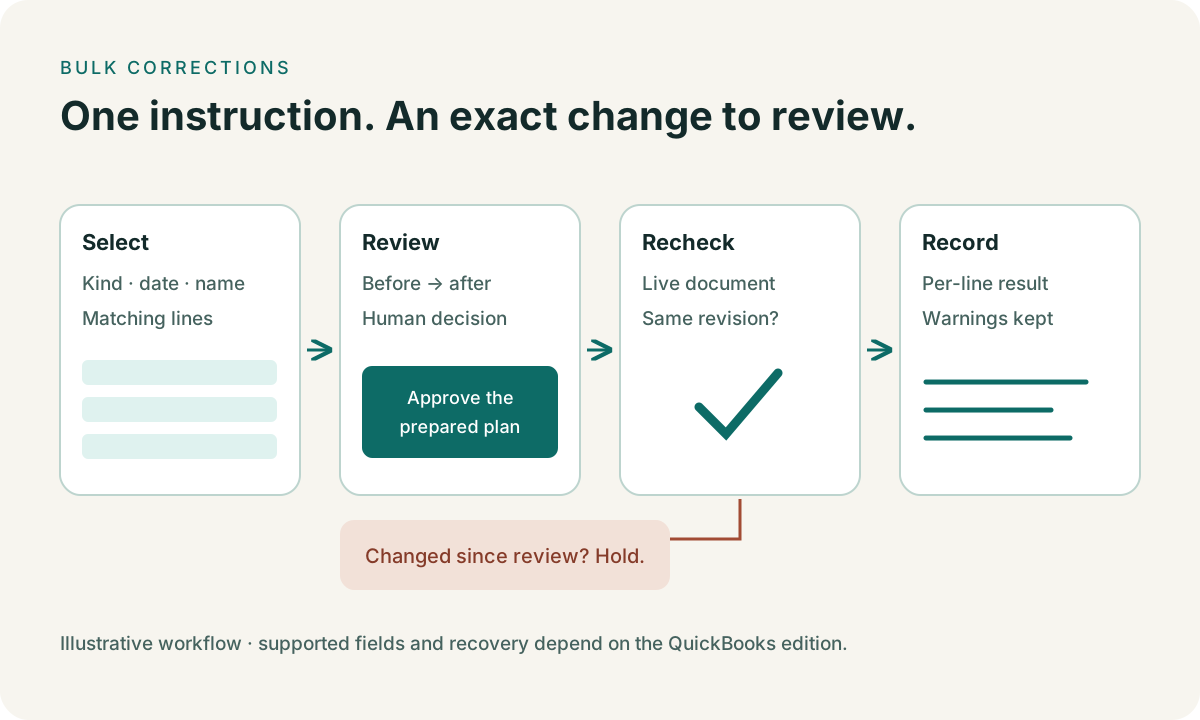
For example: select last quarter’s checks with lines on Automobile, propose a move of those lines to Vehicle Fuel, and keep the rest of each document intact. Zeno prepares the work against the actual names and documents, with warnings visible before approval.
The same conversation can gather evidence, read reports and consult saved company rules. Access to email, cloud storage or local files comes from the assistant and integrations you authorize.