Muse does the bookkeeping. Zeno guides it. You decide.
Connect Zeno to Muse and it can answer questions from the books, code the bank feed, match receipts, enter bills and prepare the month, beside the email and calendar Muse already reads for you. Muse never touches QuickBooks itself: it works through Zeno, and nothing posts until a person approves the plan.
- 01MuseDescribe the work
- 02ZenoPrepare with your saved rules
- 03Your reviewApprove what is ready
- 04QuickBooks OnlineYour ledger stays your ledger

Add Zeno to Muse.
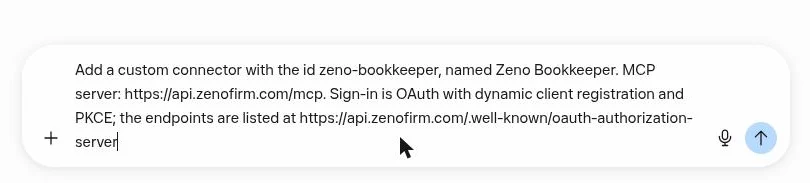
Muse connects a new app when you ask for it in the chat; there is no form to fill in. Copy this request, then follow the screens below.
Add a custom connector with the id zeno-bookkeeper, named Zeno Bookkeeper. MCP server: https://api.zenofirm.com/mcp. Sign-in is OAuth with dynamic client registration and PKCE; the endpoints are listed at https://api.zenofirm.com/.well-known/oauth-authorization-server- 01Have a Zeno workspace
Start the trial and authorize your QuickBooks Online company through Intuit. Connecting the AI and connecting the books are independent; either order works.
- 02Ask Muse to add the connector
Open a new chat in Muse and send the request above, as written. Muse builds the connection itself; it takes a minute or two.
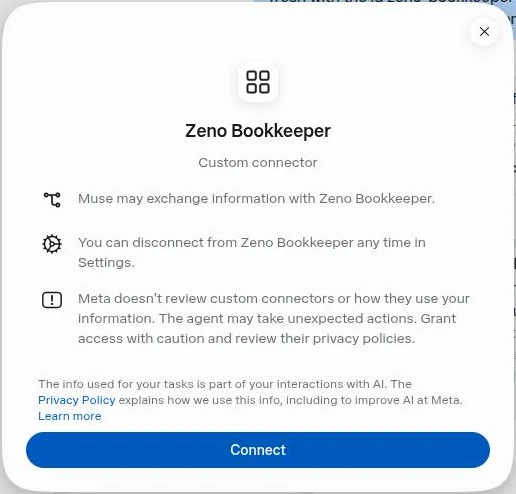
- 03Press Connect on the card
Muse answers with a Zeno Bookkeeper card. Press Connect, read Muse’s note about custom connectors, and press Connect again.
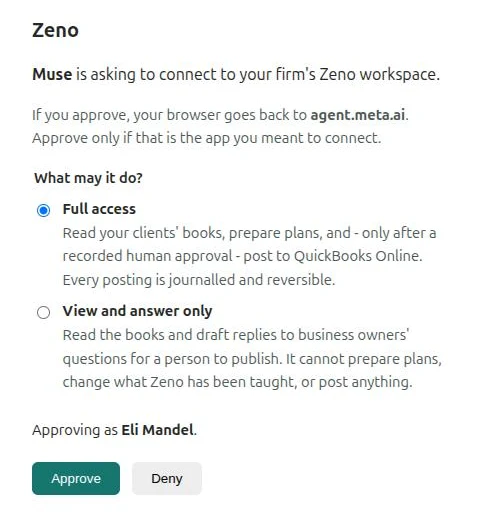
- 04Sign in to Zeno and choose access
Zeno’s own page opens. Sign in, choose full access or view and answer only, and approve. A viewer invited by the administrator gets their restricted connection automatically.
- 05Check it in Settings
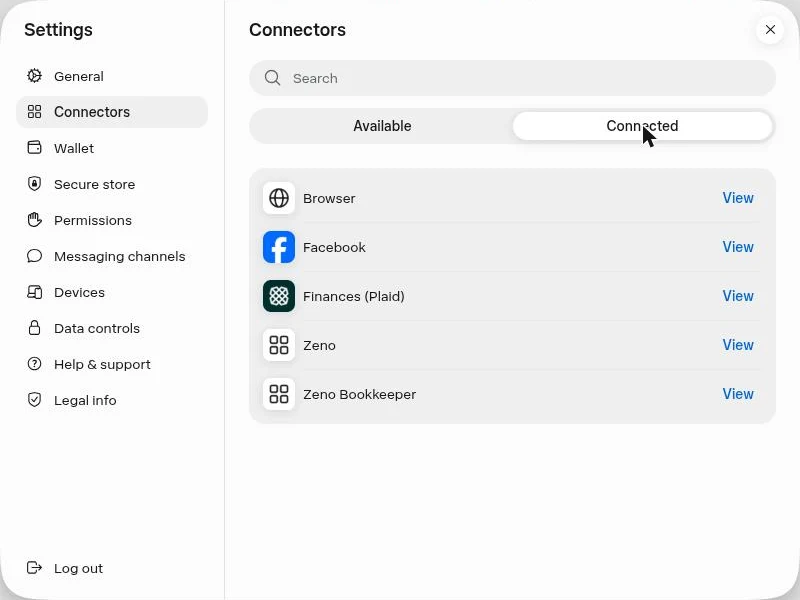
Muse confirms in the chat that Zeno Bookkeeper is connected. It is listed under Settings, then Connectors, then Connected, which is also where you disconnect it.
- 06Ask about the books
Name the company and ask a question, or hand Muse the month. A plan waits in Zeno for a person to approve before anything posts.
Zeno Bookkeeper is a remote MCP server at https://api.zenofirm.com/mcp (streamable HTTP, OAuth with dynamic client registration and PKCE). The person needs a Zeno workspace first: app.zenofirm.com/signup, 14 days free, no card. Once connected, you can read the books and prepare plans. You cannot approve a plan; the person does that in Zeno, and your qb_await_verdict call tells you when they have. The full tool list is at zenofirm.com/docs/cloud/tools.
Muse and Zeno.
Can Muse change my books on its own?
No. Muse prepares a plan; a person approves it in Zeno; only then does Zeno post it. A connection set to view and answer only cannot prepare or post anything, and a viewer invited by the administrator can never change the ledger.
Muse says it couldn’t connect. What now?
Ask Muse to remove the Zeno Bookkeeper connector and add it again. Muse keeps the first registration it made, and adding it afresh makes it register again with Zeno.
The card says Zenofirm instead of Zeno Bookkeeper.
Muse names the card after the id it gave the connector, and renaming it later does not change the card or Settings. Disconnect it under Settings, then Connectors, and send the request on this page again; it names the id.
Which Muse plan do I need?
The connector works on Muse’s free plan. Zeno is billed separately, by us, after the 14-day trial.
Does this work for QuickBooks Desktop?
Not this connection. For QuickBooks Desktop, Zeno is a Windows app that runs beside the company file and has its own setup. This page is for QuickBooks Online.
What does Meta see?
The results of the tools Muse calls in your conversation, under the terms and settings of your Muse account. Zeno does not train models on your data. Muse never connects to QuickBooks itself: Zeno holds that connection, and Muse can only ask Zeno, which puts every change in front of a person before it posts.