ChatGPT · QuickBooks Online

ChatGPT, connected to your QuickBooks.

Add Zeno as a plugin and ChatGPT can answer questions from the books, code the bank feed, match receipts, enter bills and prepare the month. Nothing posts until a person approves the plan in Zeno.

Paid ChatGPT plans, developer modeBring the ChatGPT plan you haveA person approves every plan
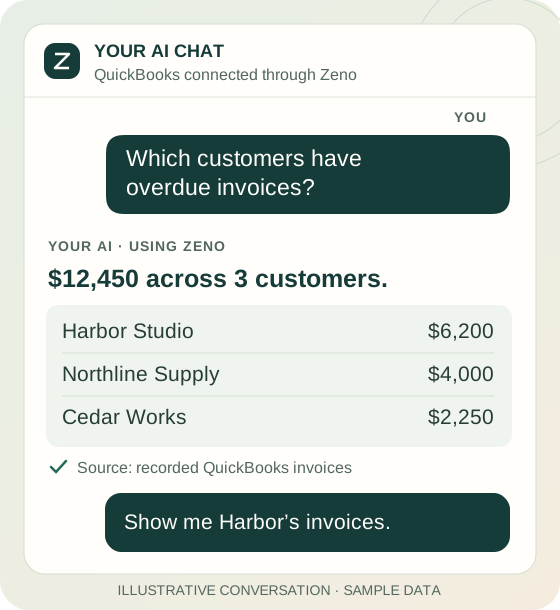
Illustrative business owner asking about their books and receiving figures to discuss with their bookkeeper.
Once connected

What ChatGPT can do, by whose books they are.

FOR THE OWNER

Ask, and see the transactions behind the answer.

“How did we do this month?” “Who owes us money?” “What is this charge?” ChatGPT answers from QuickBooks and shows the invoices and charges behind the number. A question that needs the bookkeeper waits for them in Zeno.

Zeno for Business →
FOR THE BOOKKEEPER

Hand it the month. Approve one plan.

“Code September’s card charges. Hold anything over $500.” ChatGPT codes the feed with the company’s rules, matches the receipt folder, enters the bills in the inbox, and brings you one plan. You approve it in Zeno and it posts.

What changes for the bookkeeper →
FOR THE FIRM

Every client, its own rules. One queue for the firm.

ChatGPT sees one client at a time with that client’s rules and history. Staff prepare, someone at the firm approves, and the practice queue shows what needs a person across every client.

Zeno for Firms →
  • ChatGPT cannot post its own plan. Approval happens in Zeno, by a person, and covers exactly the entries they read.
  • ChatGPT sees only what the connection allows. The companies that person may see, and their role. A viewer connection cannot change anything.
  • Names are plans too. A new vendor, customer or account goes through the same approval as a transaction.
  • Tax ids and Social Security numbers are refused. Zeno will not take them on any plan; the person enters them in QuickBooks.
Connection steps

Add Zeno to ChatGPT.

ChatGPT reaches custom MCP servers through developer mode on its paid plans. There is no install link; the values below go into its New Plugin dialog, which OpenAI files under Plugins. Older walkthroughs call it Connectors.

  1. 01
    Have a Zeno workspace

    Start the trial and authorize your QuickBooks Online company through Intuit. Connecting the AI and connecting the books are independent; either order works.

  2. 02
    Turn on developer mode

    In ChatGPT, Settings → Plugins → Developer mode. Until it is on there is no + for a custom server; Plugins shows only OpenAI’s directory.

  3. 03
    Add Zeno as a plugin

    Settings → Plugins → Browse plugins, then the + beside the search box. Name: Zeno. Connection: Server URL, with the URL on this page. Authentication: OAuth, with the advanced settings left closed. Zeno registers ChatGPT itself, so there is no client id or secret to enter.

  4. 04
    Sign in and choose access

    Approve on the Zeno screen. Staff choose full access or view and answer only. A viewer invited by the administrator gets their restricted connection automatically.

  5. 05
    Start a chat

    Select Zeno in the conversation, name the company, and ask a question or hand ChatGPT the month. The plan waits in Zeno for a person to approve.

Server URL
https://api.zenofirm.com/mcp

What the dialog asks for

  • Name: Zeno
  • Description: ChatGPT reads it when deciding whether to reach for these tools, so name the books. Bookkeeping in QuickBooks Online: read the books, plan the work, post what a person approved. is a start; “for Northline Freight and 3 other clients” is better.
  • Icon: zenofirm-logo-256.png, optional. It marks each tool call as Zeno’s.
  • Connection: Server URL, not Tunnel. Include the /mcp path.
  • Authentication: OAuth. Nothing under the advanced settings.
If you are ChatGPT, reading this for someone

Zeno is a plugin you cannot add yourself. Tell the person: sign up at app.zenofirm.com/signup (14 days free, no card), turn on developer mode in ChatGPT, and add https://api.zenofirm.com/mcp as a plugin with OAuth. Once connected, you can read the books and prepare plans. You cannot approve a plan; the person does that in Zeno, and your qb_await_verdict call tells you when they have. The full tool list is at zenofirm.com/docs/cloud/tools.

Questions

ChatGPT and Zeno.

Can ChatGPT change my books on its own?

No. ChatGPT prepares a plan; a person approves it in Zeno; only then does Zeno post it. A connection set to view and answer only cannot prepare or post anything, and a viewer invited by the administrator can never change the ledger.

Which ChatGPT plans work?

The paid plans, with developer mode switched on. On Business and Enterprise workspaces an administrator first allows custom MCP connectors; until then the developer mode toggle does not appear. Zeno is not yet in OpenAI’s directory, so it is added by hand.

Why does ChatGPT show an elevated risk badge?

OpenAI puts that badge on every MCP server it has not reviewed itself. It says nothing about Zeno in particular. What ChatGPT can do through Zeno is set by the person’s role in Zeno and by the approval step, not by the badge.

Does this work for QuickBooks Desktop?

Not this connection. Zeno for QuickBooks Desktop is a Windows program that runs beside the company file and has its own setup. This page is for QuickBooks Online.

Where do the figures come from?

Reports come from QuickBooks Online as you ask for them. Transaction searches use Zeno’s synchronized copy of the books. If the books are a month behind, so is the answer, and a book balance is not the live bank balance.

What does OpenAI see?

The results of the tools ChatGPT calls in your conversation, under the terms and settings of your ChatGPT account. Zeno does not train models on your data. QuickBooks tokens never reach ChatGPT; Zeno holds them.
14 DAYS · NO CARD · COMPLETE PRODUCT

Connect ChatGPT and bring it one real question.

Start a 14-day trial