
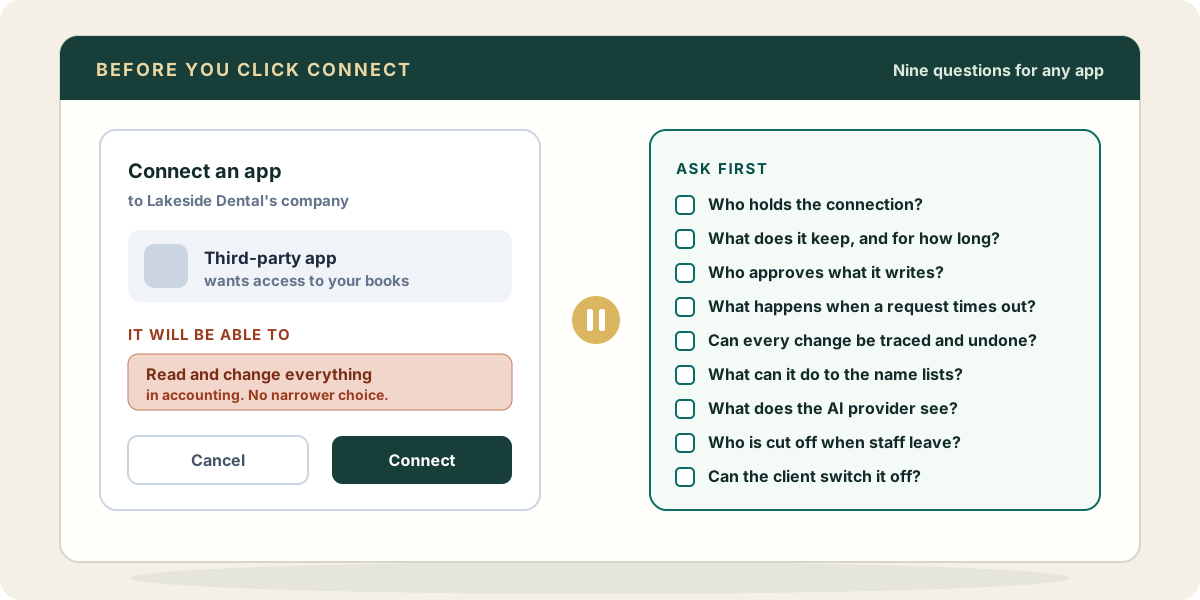
Every app that connects to QuickBooks Online goes through the same Intuit consent screen. The client’s admin signs in, picks a company, and clicks Connect. The screen is short, and the decision behind it is bigger than it looks.
This post is the list of questions we would want a firm to ask before that click, about any product, ours included. For each one: what a good answer sounds like, and how to check it without taking the vendor’s word for it. Zeno’s own answers are at the end, with the parts that are less flattering left in.
What the consent actually grants
Almost every bookkeeping app asks for one scope:
com.intuit.quickbooks.accounting. Intuit does not split it. There is no
“read invoices only” or “bills but not payroll accounts” version. Once the
admin approves it, the app can read every accounting entity in that company
and create, change, void and delete transactions and list entries through
the API, for as long as the connection lasts.
So the scope is the outer boundary. It does not describe what the app will actually do. Read-only, approve-first or per-client permissions all have to be built by the vendor, inside the app, on top of a connection that would allow much more. That is why the questions below are about the product’s behaviour and not about the consent screen.
1. Who holds the connection, and where do the tokens live?
Intuit issues an access token, good for an hour, and a refresh token that keeps the connection alive for up to 100 days at a time. Whoever holds the refresh token holds the company.
A good answer: the tokens are stored server-side, encrypted at rest with keys kept apart from the database, and never handed to a browser, a desktop plugin or an AI model. With an AI connector in particular, ask whether the model’s client ever receives a QuickBooks token, or only a token for the vendor’s own service.
How to check: the security page should say this in so many words. If the setup asks you to paste a QuickBooks token or a username and password into anything, the answer is already no.
2. What does it store, and for how long?
Few apps work purely live. Most keep a copy of the chart of accounts, names and some or all transactions so that searches and checks do not hit Intuit’s rate limits on every request.
A good answer names what is copied, how long it is kept, and what happens in two separate cases: when you disconnect, and when you ask for the data to be deleted. Those are different events, and a vendor that treats them as one has usually not thought about either.
How to check: the privacy policy, under retention. Look for the words “working copy,” “cache” or “mirror,” and for a deletion path that does not require emailing the founder.
3. Can it write, and who approves the writes?
The scope allows writes, so the honest question is what stands between the app and a posted entry.
A good answer: a specific person approves a specific set of changes before any of them post, and the app refuses to post anything that changed after it was approved. “You can review in the activity log afterwards” is not approval. Neither is a setting that says “require confirmation” and can be switched off by the same AI it is meant to restrain.
How to check: in a trial, ask the AI to post something, then tell it you approve in the chat. If the entry posts, the approval is a sentence in a conversation, and anyone who can type in that conversation can give it.
4. What happens when a request times out?
A write can succeed at Intuit while the response is lost on the way back. An
app that retries naively posts the entry twice. Intuit provides a
requestid parameter for exactly this, and it only covers retries of the
same request within Intuit’s own window. We wrote up what requestid
guarantees and where it stops.
A good answer: every write carries a request id, the app records what it is about to send before sending it, and after a crash it checks the ledger before trying again.
How to check: ask. A vendor who has dealt with this will answer in one sentence. One who has not will talk about uptime.
5. Can every change be traced and undone?
A month later the question is never “what posted” (QuickBooks shows that) but “who asked for it, who approved it, and why.”
A good answer: each change links back to the request that produced it and the person who approved it, and a batch can be reversed as a batch: creates deleted, edits restored to the prior version, rather than a person hunting through the register.
How to check: post a small test batch, then ask the vendor to reverse it in front of you.
6. What does it do with names?
Customers, vendors, accounts, classes and items are not side data. Renaming a vendor renames it on every check already printed. Merging two customers cannot be undone in QuickBooks Online. An AI that “tidies” the vendor list can do more damage in a minute than a month of miscoded lines.
A good answer: list changes go through the same approval as transactions, and there is no shortcut tool that changes a name directly.
How to check: ask the AI, during the trial, to rename a vendor. See whether it just does it.
7. What does the AI provider see?
With an AI connector there are two companies in the data path: the connector’s vendor and the model provider (Anthropic, OpenAI or another). Whatever the connector returns to the model is processed under the model provider’s terms, not the connector’s.
A good answer says this plainly, says what the connector itself does and does not log from the conversation, and does not claim the model provider sees nothing. Under the firm’s own AI account, the firm’s own data settings with that provider apply.
How to check: the privacy policy should name the providers and say what the vendor receives from the conversation. If it says “we see nothing,” ask how the tools work.
8. When a staff member leaves, what do you revoke?
A person who connected their own AI client to the firm’s books can still have that connection on their laptop after they leave.
A good answer: removing the person from the firm cuts off every AI connection they made, on the next request, without anyone having to find and revoke each one. The firm can also disconnect a single AI client by name.
How to check: in the trial, invite a second person, have them connect an AI, remove them, and ask their AI to read something.
9. Can the client cut it off without you?
The client owns the QuickBooks company. They can disconnect any app from QuickBooks Online’s own connected-apps screen at any time.
A good answer: the app notices, stops, and tells the firm. It does not need the firm to be on the phone to let go.
Zeno’s answers
1. Connection and tokens. Zeno holds the QuickBooks connection. Intuit tokens are envelope-encrypted: each one sealed with its own AES-256-GCM key, itself wrapped under a master key kept outside the database. The AI client never receives them. It holds only a Zeno sign-in, approved by a named person over OAuth 2.1, and works through Zeno’s tools. It never talks to QuickBooks itself. See security.
2. What Zeno keeps. Zeno does store working copies of each connected company’s ledger data: charts of accounts, names, items, transactions, attachments and reports. This is so work can be prepared and checked without querying Intuit on every request, and it is the honest trade-off of how Zeno works. Disconnect stops the sync and revokes Zeno’s access to that company, and keeps the copies so that reconnecting picks up where it left off. Remove, offered once a company is disconnected, deletes them. Neither changes anything in QuickBooks. Plans, approvals and the work log are kept for the life of the workspace. The details are in the privacy policy.
3. Writes and approval. New entries and name changes reach QuickBooks only through a plan that a person at the firm approves with their own click, in the Zeno console or on the plan drawn in the chat. No tool records an approval for them, and a “go ahead” typed into the conversation is not one. Applying a plan refuses to post if the books changed underneath it after approval. A short list of other changes happens only when someone asks for it: correcting, voiding or deleting an existing transaction, attaching a document, sending an invoice. The ones that remove or send something confirm first, and each is recorded in the work history.
4. Retries. Every write carries a request id, and runs are journaled before they are sent, so a retry after a timeout or a restart does not post twice.
5. Trace and reversal. Every run is recorded against the plan and the approval that produced it, and can be reversed by running the mirror of what it did.
6. Names. Accounts, customers, vendors, employees, items, classes, locations, terms and payment methods are created, changed and retired only through an approved plan. There is no tool an AI can call to change a name directly.
7. The AI provider. You choose and connect the AI. Whatever Zeno’s tools return to it is processed under that provider’s terms. Zeno records which tool ran, the names of the arguments, the company and the outcome. It does not receive or store the rest of your conversation. Zeno runs no AI model of its own over your clients’ data and trains none.
8. Offboarding. Zeno checks the person behind an AI connection on every request. Remove them from the firm and their AI is refused on its next call. A firm can also disconnect any AI client by name from the console. That ends its access immediately and leaves everything it did in the record.
9. The client. A client can disconnect Zeno from QuickBooks Online at any time, and Zeno stops reading that company.
For what Zeno will not do even when asked, see the limits page. The short answers to everything else are on the FAQ.