
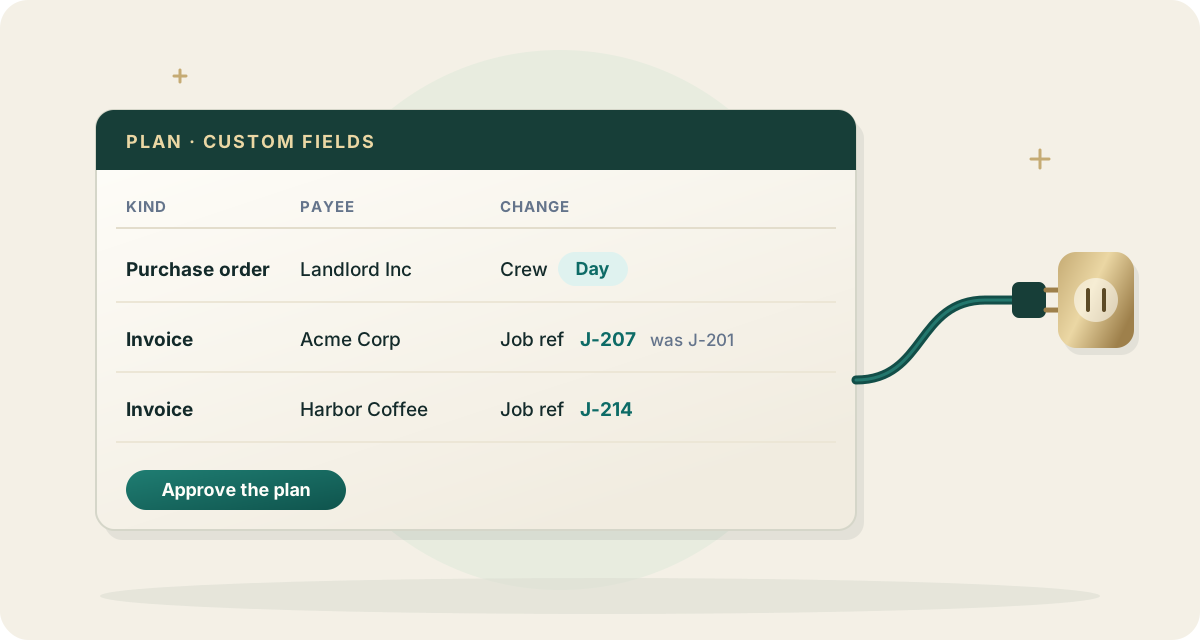
Zeno now reads and writes the custom fields defined in QuickBooks Online's Custom fields list. Reading those fields needs a permission Intuit added for them, so each client company has to be reconnected once. On the Clients page, choose Reconnect to read custom fields beside the company, sign in to Intuit, and accept the consent screen. Until a client is reconnected, Zeno cannot see the fields defined in that company's Custom fields list.
Custom field values on documents, customers and vendors
Transaction, customer and vendor reads now carry each record's custom field values, and a dropdown field shows the option's name rather than its stored number. When an assistant prepares invoices, purchase orders or other forms, a plan can set a field's value, and a correction plan can change or clear one on a document that is already posted. The reviewer sees each value before approving, and reversing the run puts the previous value back.
Where fields go depends on the client's QuickBooks Online plan: sales forms on Essentials, sales forms and purchase orders on Plus, and expense forms, customers and vendors as well on Advanced. QuickBooks Online keeps no custom fields on journal entries, deposits, transfers or payments, so Zeno refuses a value on those before anything posts instead of letting QuickBooks drop it.
Defining and changing the fields themselves
A plan can also create a field, rename it, change a dropdown's options, or turn a field off and on again. Each change is checked against the field as QuickBooks Online holds it when the plan is applied; a field edited in QuickBooks after the plan was made is left alone. QuickBooks Online cannot delete a field, so undoing a new field turns it off.
A built-in check for 1099 vendors
The check-up now has a nineteenth check. It lists the vendors paid at least the year's reporting threshold by check, cash or bank transfer who are not marked for 1099, with each vendor's total and number of payments. Card payments, employees and customers are left out. The threshold follows the tax year: $600 for payments through 2025 and $2,000 for payments in 2026. The check reads last year in full, and from April the current year so far as well.
Checking a vendor statement against the books
When a vendor sends a statement, an assistant can read its lines and have Zeno compare them with that vendor's bills, credits and payments in QuickBooks Online. The result lists what is on the statement but not in the books, what is in the books but not on the statement, and amounts that differ under the same reference.
The check also sets the statement's ending balance beside what QuickBooks Online shows owed on the statement date, read live, and says how much of the difference those items explain. The check writes nothing; a missing bill goes into a plan like any other.
Improvements
- The plan page shows only the columns a plan uses, with each custom field in its own column and the old value beside the new one
- Owners can refer someone from the Refer someone page by link or by email
- When a referred workspace's first payment clears, the referrer's next charge is lowered by a month of what it pays, at most the whole charge
- A posted value that QuickBooks Online did not keep is reported on the run instead of passing silently
- Twelve bookkeeping jobs, from budgeting to the year-end package, are described at zenofirm.com/workflows