
Every everyday transaction
- Bills, checks and card charges
- Deposits, transfers and journal entries
- Bill payments and vendor credits
Your staff can ask the AI to code card charges, match receipts, prepare bills and invoices, count stock, write budgets and set up projects for each client. They review the proposed entries together and leave out anything that needs more information. What you teach it about a client is still there next month, and for the next person who takes the client over.
The base includes three client books on QuickBooks Online and everyone at the firm. Clients on QuickBooks Desktop run on the Desktop licence; their live bank feeds come through the connectors add-on on this same account, so the firm has one login and one invoice.
The matching and coding for each client is done before anyone opens the file, by that client's own rules. Your people spend the month on review, the exceptions and the advice.
 Approved plans post to each client's QuickBooks Online. Your staff prepare; only the people you allow can approve.
Entries, sales, purchasing, stock, budgets, projects, lists and cleanup. The AI prepares the work for each client and someone at the firm approves it. When the keying is gone and the job is review, one person can carry far more clients.
Beyond QuickBooks Online. Bank and card feeds, Stripe, Square and Helcim payouts, staff expense claims and the documents clients forward all arrive in Zeno and become plans the same way.
Always current. Every plan is checked against the books as they are when it is approved, and a change someone makes in QuickBooks Online usually reaches Zeno within seconds.
What stays in QuickBooks Online. Running payroll, the reconcile screen, closing the books, and paying sales tax, along with sales orders, assembly builds and mileage. Bank lines come through Zeno’s own feed rather than the For Review list.
The full list, with what each one needs: every tool in the docs → · How bookkeeping workflows run in Zeno →
In this sample company, saved rules supplied the coding for 14 card charges. The reviewer checked the entries and approved $2,992.70 for posting to QuickBooks Online.
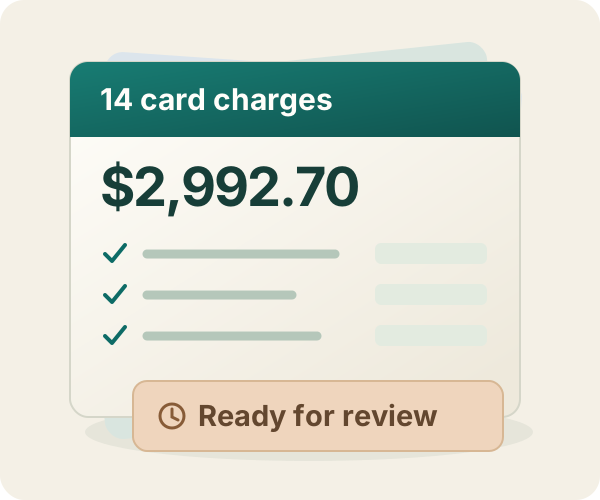
Standing rules filled the coding for 14 Business Visa charges. The prepared $2,992.70 batch waited for a person’s decision before anything posted.
See the prepared plan (original screenshot, opens in a new tab)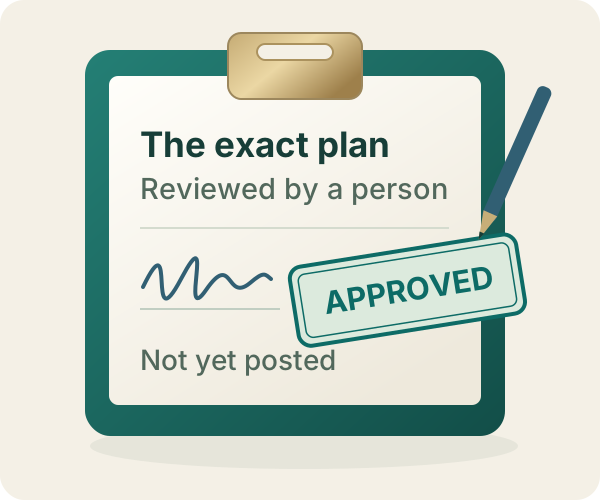
The reviewer saw the source, coding, amount, warnings, and exclusions. If any included entry changed, Zeno would require a new decision.
See the recorded approval (original screenshot, opens in a new tab)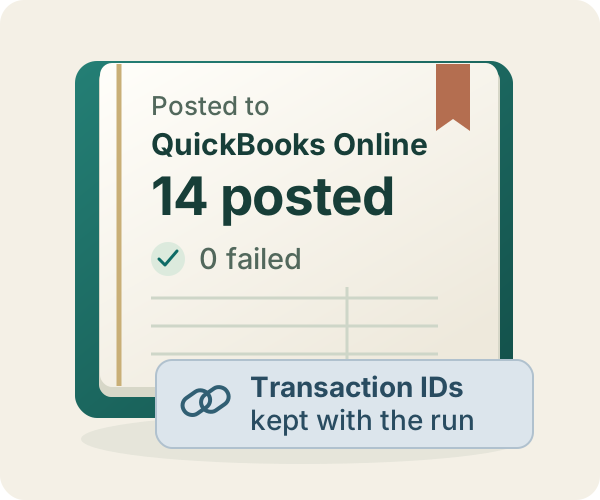
All 14 approved charges appear in the QuickBooks register. Zeno links each result to the entries and approval so the reviewer can check the finished work.
See the posting results (original screenshot, opens in a new tab)Illustrated workflow · Original captures from September 8, 2026, in Zeno staging and Intuit’s QuickBooks Online sandbox. View the posted charges in QuickBooks Online (opens in a new tab)
Nothing a client teaches Zeno leaks into another client’s books. Nothing that needs a person hides in a single client’s workspace.
Each client shows its QuickBooks connection, the people responsible, what is open, and who decided what.
Plans waiting for approval, exceptions the AI held, postings that failed, and unclaimed documents, across every client.
Give owners view-only access to ask about their books. Questions on bank lines notify them by email, and their AI can hand in receipts from their Drive or inbox—without giving your firm access to their private files.
Coding rules, client facts, documents and history belong to the client that taught them. The AI cannot reach across.
Your close checklist, written once, followed for every client, by whoever is doing the work and whichever AI they use.
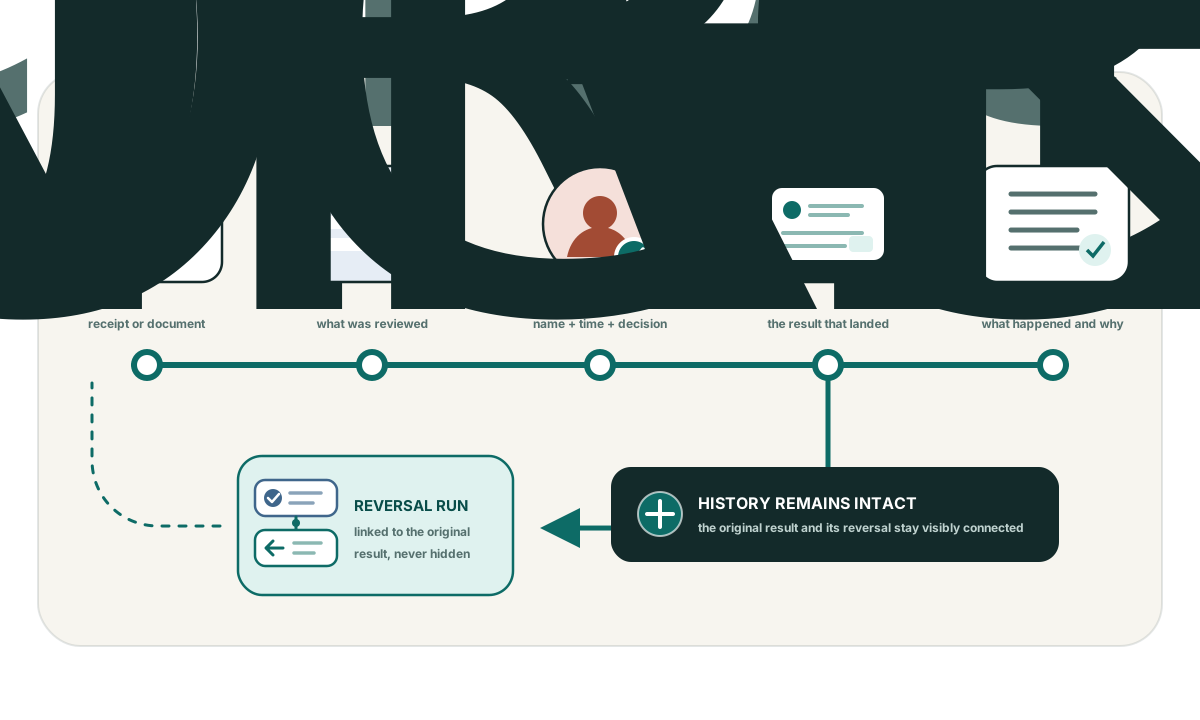
From the AI session to the person who approved it to the QuickBooks transaction, with the explanation and the open items still attached.
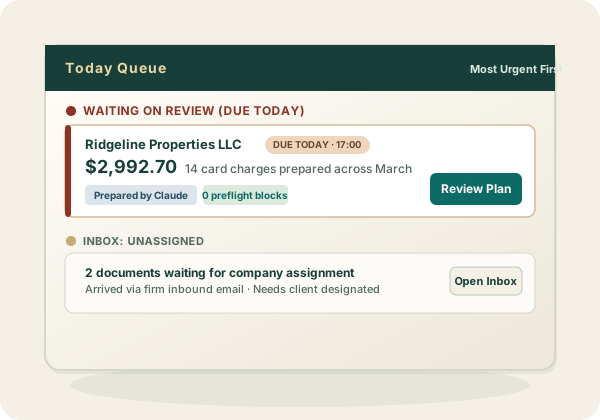
Every page of the console is documented before you sign up: tour the firm console →
This is built into the software, not into a prompt. It holds for a junior preparer’s first client and for the partner’s biggest one.
No setup fee and no services package. The first client is free for 14 days.
Name the practice and invite the people who prepare or approve work.
Authorize the client’s QuickBooks Online company through Intuit.
Have the AI prepare a month, read the plan, approve it, and open the record afterwards.