Zeno for QuickBooks Desktop

Spend less time entering transactions. Keep up with the books.

Give Claude or ChatGPT your bills, receipts or bank statement and ask it to prepare the entries in QuickBooks Desktop. Review the accounts and amounts, set aside anything that needs an answer, and approve what is ready to post. Zeno connects your AI assistant to the QuickBooks you already use.

Free for 250 transaction postingsNo credit cardFor WindowsUse your own Claude or ChatGPT subscription

Setup guide → · How you review the work →

Work through the paperwork fasterAsk your AI to prepare a folder of bills or code a month of card charges together. Spend your time reviewing the work.
Find the numbers you needAsk which customers owe you money or why expenses went up. See the invoices and transactions behind the answer.
Keep using QuickBooks DesktopZeno runs on your Windows PC. Your company file stays where it is, and you keep working in the QuickBooks you know.
Start with the work on your desk

What would you like to get done today?

Describe the task in your own words. Your assistant uses the accounts, customers and vendors already in your books to prepare the work or answer your question.

BILLS AND RECEIPTS

Get the entries ready without typing each one.

“Prepare these supplier bills. Show me anything that might already be entered.”

Your AI prepares the entries for review. You check the coding and amounts, with possible duplicates and missing information called out.

BANK AND CARD TRANSACTIONS

Review a month of charges together.

“Code this card statement using our usual accounts. Leave the charges with missing receipts for me.”

Saved rules handle familiar vendors. You can approve the ready entries and leave the rest until you have what you need.

QUESTIONS ABOUT THE BUSINESS

Find out what is behind the number.

“Why did repairs cost more this month? Show me the bills.”

Ask follow-up questions and check the transactions behind the answer. Owners can understand the books without taking over the bookkeeping.

See it in QuickBooks Desktop

A card statement, ready for your review.

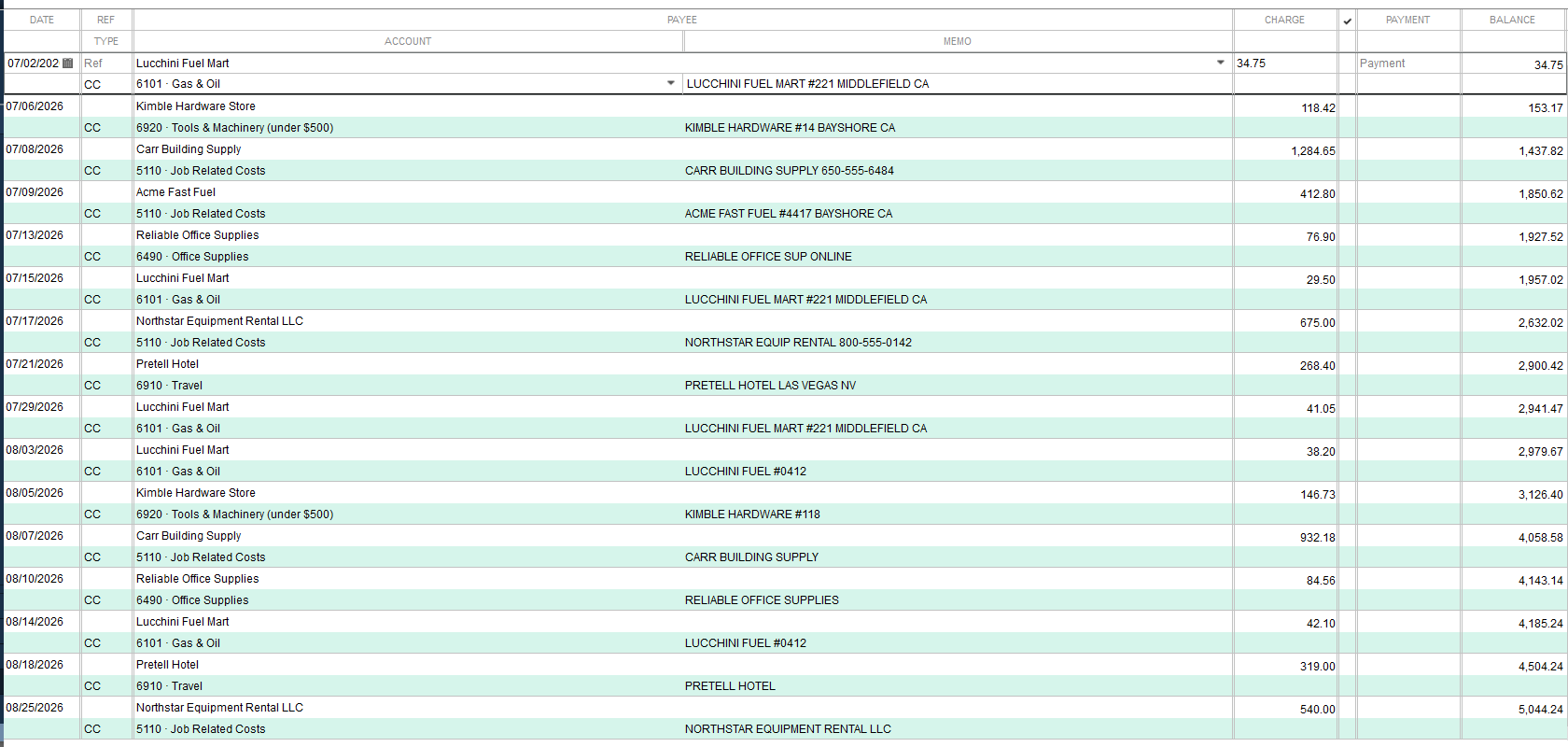
In this example using Intuit’s sample company, Claude prepared eight Mastercard charges. The reviewer approved seven and held a restaurant charge while waiting for its receipt. The ready work could be finished without guessing about the missing receipt.

$2,102.77 posted7 of 8 charges1 held charge
Download the sample statement
The sample company’s QuickBooks Desktop register, with the seven approved August charges totaling $2,102.77.See the entries in QuickBooks Desktop (original screenshot, opens in a new tab) ↗

Example using a sample company · Original screenshots from August 2026 in Claude Desktop, the installed Zeno console, and QuickBooks Enterprise Contractor 24.0 using Intuit’s Sample Quality‑Built Construction company file.View the QuickBooks Desktop register (opens in a new tab) ·View work log detail (opens in a new tab) ·View coding rules (opens in a new tab) ·View a proposed coding rule (opens in a new tab)

Less to explain next month

Keep the coding and client notes you have already worked out.

Save recurring instructions with the company they belong to. Your assistant can use them the next time you work on those books, even in a new conversation.

REPEAT VENDORS

Stop coding the same charges from scratch.

Confirm a rule such as “Lucchini Fuel goes to Gas & Oil.” Zeno uses it to code future matching transactions for review.

CLIENT INSTRUCTIONS

Keep the details that are easy to forget.

Save how a client splits an expense or the steps in their monthly close. Those instructions are available when your assistant prepares the next task.

WORK HISTORY

Pick up where the last person left off.

See what was requested, what was approved and what posted. The next bookkeeper can find the reason for a decision without searching an old chat.

You decide what goes into the books

Review the entries before they post.

See the proposed accounts, amounts and supporting documents in Zeno. Leave out anything you are unsure about and approve the entries you are ready to post.

Afterward, you can see what QuickBooks recorded and who approved it. Zeno also offers reversal for supported entries; what can be undone depends on the transaction and the current books.

  1. 01
    Choose the company

    Zeno checks that QuickBooks has the company file you selected open before preparing the work.

  2. 02
    Check the proposed entries

    Review the coding, amounts, possible duplicates and missing information together.

  3. 03
    Approve what is ready

    Your approval covers the entries you reviewed. Relevant changes in QuickBooks can require another review before posting.

  4. 04
    See what posted and what still needs you

    Check the result of each entry, including anything that could not be posted, and return to the unfinished work.

Beyond bills and bank statements

Get help with the rest of the bookkeeping, too.

Prepare customer invoices, record payments, work through the close or clean up old entries. Find the tasks that take up your week and see how Zeno can help.

  • Billing and collections: prepare invoices, record customer payments and credits, and find overdue balances.
  • Month-end work: prepare adjusting entries, follow saved checklists and review financial reports.
  • Inventory and jobs: prepare inventory adjustments, assembly builds, time and mileage entries where your edition and licence support them.
  • Cleanup: review corrections to transactions, accounts, customers and vendors together.
  • Client work: compare results across registered company files and keep each client’s instructions and work history available.
Getting started

Use the company file you already have.

Install Zeno on the Windows PC where you use QuickBooks Desktop. The setup guide helps you choose your company file, approve access in QuickBooks and connect your assistant.

Your company file stays on your PC. The records your assistant requests are sent to Claude or ChatGPT under your account’s settings and policies.

Read the setup guide → · Connection details →

  • QuickBooks Desktop Pro, Premier or Enterprise on a Windows PC.
  • Your own Claude or ChatGPT subscription, purchased separately.
  • A QuickBooks Administrator to approve Zeno’s access to each company file during setup.
  • Your first task: choose a familiar statement or a few bills, ask your assistant to prepare them, and review the proposed entries.
Try it on your own books

Start free. Buy once when you are ready.

Try the full product for 250 transaction postings with no credit card. A licence lets you continue posting and includes 12 months of updates. After that, updates are optional and your covered version keeps working. QuickBooks and your AI subscription are separate purchases.

Managing clients through Zeno for Firms? The Desktop connector is included on every workstation. The licences below are for using Zeno independently, without a Zeno account.

Core

Solo or in-house

$449
One time · one workstation
  • Two company files
  • Everyday bills, sales, banking and journal entries
  • Saved coding rules, company notes and checklists
Buy Core
Enterprise

Multi-company inventory

$1,195
One time · two workstations
  • Everything in Practice, including unlimited company files
  • Inventory adjustments, assemblies and item receipts
  • Link purchases to purchase orders
  • Additional workstations $295 each
Buy Enterprise
  • Review and history are included in every licence, along with reports and reversal for supported entries.
  • Keep everything from your free evaluation. Your licence activates the same installation, with your company setup, saved rules, notes and work history in place.

Deciding what comes next for QuickBooks Desktop? Read about service changes and your options.

Read the Desktop guide →

Already using SaasAnt or Transaction Pro? Compare how each handles bulk entry, corrections and review.

Compare the bulk tools →
250 TRANSACTION POSTINGS FREE · NO CREDIT CARD

Start with the bills you have been putting off.