
Keep these open
Find your company files
If the Setup Center has no companies yet, copy its Copy setup request prompt into your chat client. Zeno searches QuickBooks’ recent-file list and the normal company-file folders, then shows you the candidates. Confirm every file before registering it. A filename is only a suggested company name. If discovery misses a file, open it in QuickBooks and ask: “Register the company that is open in QuickBooks, then continue its setup.” Registering the open file records the exact company name and path QuickBooks reports.Authorize one company
Repeat these steps for every company in the Setup Center.1
Open the company as Admin
Click Open in QuickBooks in the Setup Center, or open the file from File → Open Previous Company.Sign in as the QuickBooks Admin in single-user mode. Windows administrator rights aren’t required; the QuickBooks Admin is required for this one-time permission, and only for granting it. Signed in as anyone else, QuickBooks refuses without showing the dialog.
2
Copy the next step
Click Copy next step in the Setup Center and paste it into your chat client. Let the assistant run the harmless connection check.
3
Approve access in QuickBooks
Switch to QuickBooks when the chat waits. In the Integrated Application prompt: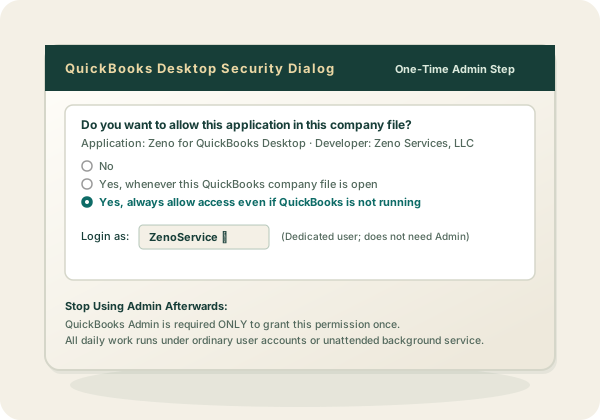
- Choose Yes, always allow access even if QuickBooks is not running.
- Select the QuickBooks user Zeno should sign in as when nobody has the file open. This does not have to be Admin; an ordinary user, or a dedicated Zeno user, is better.
- Click Continue.
- Type YES in the QuickBooks confirmation when asked.
- Click Done.
4
Verify the permission
Return to the chat client and let the connection check finish. The Setup Center marks Permission verified and Access choice recorded.If it doesn’t, copy the next step again. Setup resumes at the first unfinished item.
5
Stop using Admin
That was the last time this company needs Admin. From here on, anyone may be signed in when Zeno works on the file, or nobody at all:
- File open in QuickBooks — Zeno works as whoever is signed in, under that person’s QuickBooks permissions. It does not have to be the user you selected above.
- File closed — QuickBooks opens it in the background and signs in as the user you selected above. Nobody logs in.
6
Build the local copy
Confirm the date range the assistant suggests. The prior fiscal year through today is a useful start; use a shorter range for a large file.Zeno copies the lists and transactions for that range into a local, read-only mirror. This step can take several minutes because QuickBooks returns transactions slowly.
7
Answer the harmless test
Ask the suggested question about vendor spending. Read the result, including the mirror’s through-date, then let the assistant mark the company ready.This final question proves that registration, permission, the local copy, and the chat connection all work together.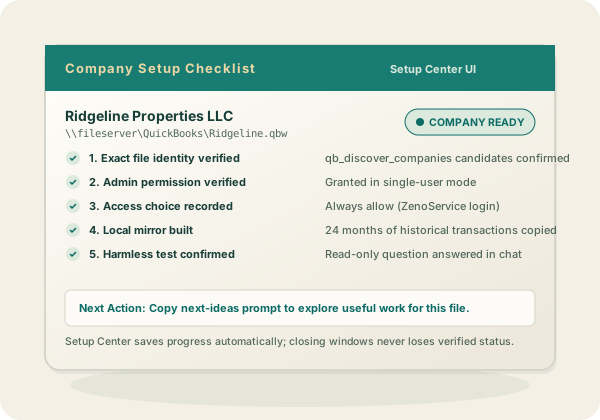
Continue with the next company
Return to the Setup Center. The finished company says Ready, and the next unfinished company shows its exact next action. Open that file and repeat the loop. Use Skip through the chat if a drive is disconnected or a company isn’t available. Zeno saves the reason and can resume it later.Understand closed-file access
The recommended permission lets Zeno open a registered company invisibly for reads, QuickBooks reports, mirror refreshes, and posting. Name the company and the work reaches it whether or not anyone has the file open. Closed-file access doesn’t loosen review. Anything that changes the books still requires that the prepared work was shown for review and that you explicitly approved it. If QuickBooks is open on a different company, the write stops and names the file you need to switch to. QuickBooks Desktop works on one file at a time.Ask what to do next
Once a company is ready, copy its Copy next-ideas request prompt or ask: “What should I do next with this QuickBooks company?”qb_help reads this workstation’s actual state. It prioritizes stale mirrors, reviewed plans that weren’t applied, draft client notes and playbooks, missing coding rules, and useful read-only questions. Each suggestion says whether it is read-only or needs review before a write.