
How you hear about it
Your chat client mentions it once, at a break in the work rather than in the middle of a batch: a newer version exists, this workstation is on the older one, and you can have it downloaded now or later. It says this once per version, so a session doesn’t nag. Nothing about your setup stops working meanwhile. An out-of-date workstation posts, reads, and reports exactly as it did the day before.Checking yourself
Checking on demand arrived in 1.2.0-beta.11. Earlier builds answer from a cache up to a day old, so a “you’re up to date” from one of them can be a day behind.
Installing the new version
1
Ask for the download
qb_download_update. It fetches about 30 MB into your Downloads folder and checks the file against the SHA256 published with the release. A file that doesn’t match is deleted rather than left sitting there looking installable.Nothing is installed at this point and nothing about this workstation has changed.2
Run the installer
Double-click the file in your Downloads folder and follow the prompts. It keeps every setting from the install it replaces, including which chat clients you’re connected to.You don’t need to quit anything first. The installer asks every running copy of Zeno — the console and the connection each chat client started — to stop before it replaces the files. Your chat clients stay open; they’ll show Zeno as disconnected until the next step. If a copy is in the middle of a QuickBooks request, the installer waits, and if one is still busy after half a minute it stops and tells you to try again in a moment rather than cut the request short.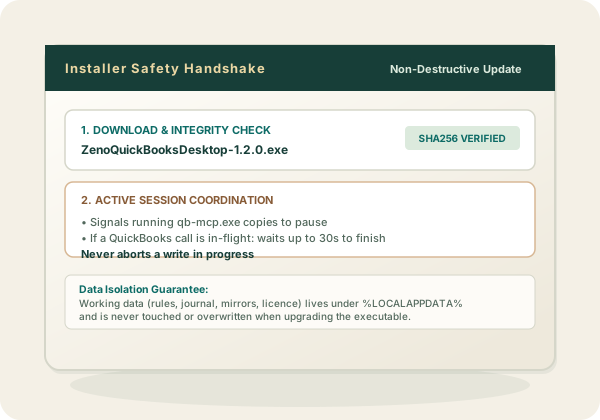
Upgrading from 1.9.0 or earlier is the one time the installer can’t ask: those versions don’t understand the request. Quit your chat clients first for that upgrade — Claude Desktop and ChatGPT Desktop from the icon next to the clock, Claude Code by ending the session — or the installer will report
qb-mcp.exe in use.3
Quit and reopen your chat client
A chat client only looks for Zeno when it starts, so it has to be restarted to pick up the new version.Claude Desktop and ChatGPT Desktop: closing the window isn’t enough. Right-click the app’s icon next to the clock — click the ^ arrow if it’s hidden — and choose Quit, then start it again from the Start Menu. In Claude Code, start a new session. Ask it anything to confirm the connection is back:It answers with the version now running.
What an update leaves alone
The update leaves your settings and working data in place. They live under your Windows account rather than next to the program:- Run journal — every batch this workstation has posted, and who approved it
- Coding rules, knowledge, and playbooks
- Registered company files and their setup progress
- Local copies of each company file
- Your licence key

A workstation with no internet
qb_check_for_update tells you it couldn’t reach us, and that’s all that happens — no error, no retry loop, nothing slowed down. The licence is checked on the machine itself, so a workstation behind a client’s firewall runs indefinitely without ever contacting anything.
To update one, download the installer on a machine that does have a connection, from the download page, and copy the .exe across. The SHA256 for each release is on that page if your firm checks downloads before running them.
What the check sends
Nothing about you or your clients. It’s one request for a small public file that says what the current release is, and the comparison against your version happens on your own machine. No licence key, no machine id, no company name, no company data, and no record that your workstation asked. To switch it off, setUpdateCheck:Enabled to false in appsettings.json next to the program. qb_check_for_update then says checking is off rather than pretending you’re current, and you can still download by hand from the page above.